How to Automatically Back Up Android Photos to Windows Using Google Quick Share
Quick Share photo backup is Google’s new way to copy your Android photos and videos to your Windows PC automatically. There is no cable, no cloud subscription, and no tapping “send” every time. Google confirmed the feature in its November 2026 system release notes. It appears under Google Play services v26.43 (2 November 2026). The release notes give a single line: “Automatic backing up photos/videos from an Android to Windows using Quick Share feature.” That one line is all Google has officially said. Even so, it is enough to know what is coming — and how to get ready for it.
There is one important catch. This is a gradual rollout, not a switch that flipped for everyone on 2 November. Google’s own release notes warn that some features “may be experimental and available to certain users.” So the backup option may not be on your phone yet. This guide explains what the feature is. It covers how setup should work based on the best available reporting. It also explains what to do if you cannot see it yet.
What Is Quick Share Photo Backup?
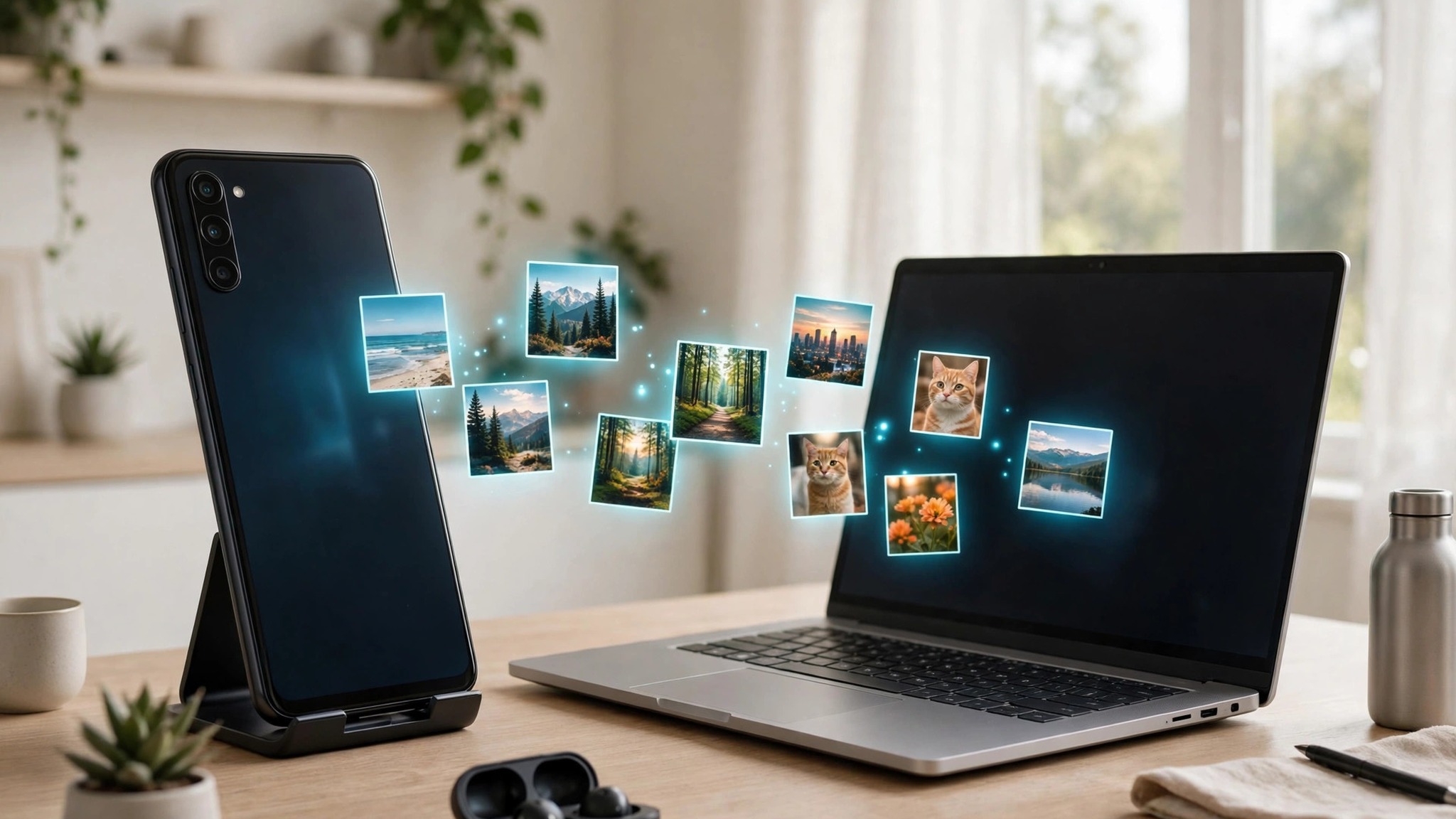
Quick Share is the built-in sharing tool on Android phones and Windows PCs. It is the one you already use to send a photo or file to a nearby device. Until now, every transfer had to be started by hand. Quick Share photo backup changes that. Once you switch it on, your phone copies selected photos and videos to your PC by itself, in the background. It works whenever both devices are on, nearby, and on the same Wi-Fi network.
The big difference from Google Photos is where your files go. Google Photos uploads your pictures to Google’s cloud and counts them against your free 15GB of storage. Quick Share photo backup sends them straight to your computer over your home network. Nothing travels through the cloud, and nothing eats into your Google account storage. That makes it a genuinely free backup option. It works as long as your PC has room for your photo collection.
Quick Share Photo Backup at a Glance
| Detail | What we know |
|---|---|
| Officially confirmed by Google | Yes — one line in Google Play services v26.43 release notes, 2 Nov 2026 |
| What it backs up | Photos and videos from your Android phone to a Windows PC |
| Cost | Free — no cable, no cloud subscription |
| How often it runs | Daily, plus a manual “back up now” option (per APK teardowns) |
| Setup starts | In the Quick Share for Windows app (per APK teardowns) |
| Requirements | 64-bit Windows 10 or later (Windows 11 for ARM), Android 6.0+ |
| Availability | Rolling out gradually — not on every phone yet |
| Samsung phones and PCs | May be excluded at first (teardown evidence only, NOT confirmed by Google) |
How to Set Up Quick Share Photo Backup
Everything in this section comes from Android Authority’s APK teardowns of Google Play services. That is, it comes from code found inside the app before release — not from Google itself. The steps could change before the feature reaches everyone. Even so, they are the best picture available today. The preparation work is worth doing now either way.
- Install Quick Share for Windows on your PC. Download Google’s Quick Share app for Windows from Google’s official site. You will need a 64-bit PC running Windows 10 or later; ARM-based PCs need Windows 11.
- Sign in with your Google Account on the PC. Open the Quick Share app and sign in with the same Google Account you use on your phone. This account only links the two devices — your photos do not pass through Google’s cloud.
- Turn on automatic backup when the option appears. According to the teardowns, setup starts in the Windows app, not on the phone. Look for an automatic backup or backup setting inside the Quick Share app. If you do not see it yet, the feature has not reached you. Skip to the fallback section below and check again after updating.
Quick Share Photo Backup: Finishing Setup
- Choose which folders to back up. Once it is on, you can pick the folders you want saved. Choose your camera roll, for example, rather than everything on the phone.
- Keep both devices on, nearby, and on the same Wi-Fi. Backups run when your phone and PC are on and close to each other. Both must be connected to the same Wi-Fi network. The teardowns suggest backups run once a day, with a button to start one right away whenever you want.
- Check where the files land. By default, Quick Share drops incoming files into your Windows Downloads folder. If you do not want years of photos piling up there, change the destination in the app’s settings. Pick a dedicated folder — or an external drive, if you have one.
Here is one reassuring detail from the early code. Deleting a photo from your phone should not delete the copy on your PC. That is the whole point of a backup. It lets you free up space on your phone without losing the picture.
What to Do If You Don’t See the Option Yet
If the backup toggle is missing, do not assume your phone is broken. Google Play services updates roll out in stages. Features named in the release notes can take weeks — sometimes months — to reach every device. First, make sure Google Play services and the Quick Share for Windows app are both fully updated. Then check again in a few days.
While you wait, you still have good options. Manual Quick Share already lets you send photos to your PC in batches, with no cable and no cost. Google Photos still works as a cloud backup. Pairing it with the “Storage Saver” quality setting stretches your free 15GB much further. Or plug your phone into the PC with a USB cable and copy the files the old-fashioned way. None of these is as convenient as automatic backup. But all of them protect your photos today. You can switch to Quick Share photo backup the moment it appears.
It is also worth knowing that the feature may not cover every device at first. Code found in Play services says it “will not support Samsung phones.” A later build extended that to Samsung PCs. That may be because Samsung runs its own Quick Share app on its PCs. But Google has said nothing about any brand exclusion. So treat that as a warning to check, not a final answer. If you use a Samsung phone, the fallbacks above are your best bet for now. The situation may change as the rollout widens.
Is Quick Share Photo Backup Really Free?
Yes — in the sense that there is no subscription and no per-gigabyte charge. Your photos travel over your own Wi-Fi to your own computer, so there is nothing to pay Google for. The only real cost is storage on your PC. A photo library that grows every day will eventually need room. If your hard drive is nearly full, you may need an external drive or a bigger one.
Compare that with the cloud alternative. Google One’s 100GB plan costs $2 a month ($20 a year), and the 2TB plan is $10 a month. Those prices look small until your library keeps growing. A local backup means you own the files on hardware you control, with no monthly bill attached. For many people, the smartest setup is both. Use Quick Share photo backup for a free local copy. Use Google Photos on Storage Saver as a lightweight cloud safety net.
Google’s own AI tools are quietly changing how we handle photos in other ways, too. Our guide to Bing AI visual search shows how you can now search the web using a picture instead of words. Want a reminder of how far camera technology has come? Look at the most distant quasar ever found. Instruments spotted it. They make your phone camera look like a toy — yet both are, at heart, about capturing light.
Frequently Asked Questions
What is Quick Share photo backup?
Quick Share photo backup is a new Google feature. It automatically copies photos and videos from your Android phone to your Windows PC over Wi-Fi. There is no cable and no cloud subscription. Google confirmed it in the Google Play services v26.43 release notes on 2 November 2026. It is rolling out gradually, so it may not be available on your phone yet.
How do I turn on Quick Share photo backup?
According to APK teardowns, setup starts in the Quick Share for Windows app on your PC. Sign both devices in to the same Google Account. Keep them on, nearby, and on the same Wi-Fi network. Then look for the automatic backup option in the Windows app and choose which folders to back up. If you do not see the option, the feature has not reached your device yet. Update both apps and check again later.
Does Quick Share photo backup work on Samsung phones?
Possibly not at first. Code found in Google Play services says the feature “will not support Samsung phones.” A later build extended that to Samsung PCs. But Google has not confirmed any Samsung exclusion in its official release notes. So this is teardown evidence only, and it could change before the full rollout. Samsung owners should check for the option and use manual Quick Share or Google Photos in the meantime.
Do I need a Google One subscription for Quick Share photo backup?
No. Quick Share photo backup sends your photos directly to your Windows PC over your local Wi-Fi network. Your photos never reach Google’s cloud, and nothing counts against your 15GB of free Google storage. The only requirement is enough free space on your PC to hold the backed-up photos.
What happens if I delete a photo from my phone after backing it up?
Based on the early code, deleting a photo from your phone should not delete the copy saved on your PC. That is what makes this a real backup rather than a sync. Your PC keeps an independent copy, so you can free up space on your phone without losing the picture.
What should I do if the backup option is not showing on my phone?
Update Google Play services on your phone and the Quick Share app on your PC to the latest versions. Then wait. The rollout is gradual and can take weeks or months to reach every device. In the meantime, use manual Quick Share transfers, Google Photos, or a USB cable. Any of them can copy your photos to your PC.
Conclusion
Quick Share photo backup could be the simplest free photo backup most Android owners have ever had. Your pictures copy themselves to your Windows PC over Wi-Fi. There is no cable, no subscription, and no cloud storage to pay for. It is real — Google has confirmed it. But it is still rolling out. The setup details come from code teardowns rather than an official guide, so expect a few rough edges at first. Get the Quick Share for Windows app installed and signed in now. Watch for the backup option to appear. Until it does, keep your photos safe with manual Quick Share, Google Photos, or a USB cable. Your memories are worth more than a storage warning.
Sources
- TechRepublic — Google Makes Android Photo Backups Easier With New Windows PC Feature (Nov 2026): https://www.techrepublic.com/article/news-google-android-windows-automatic-photo-backups/
- Android Police — Out of Google storage? Quick Share will soon back up your photos to your PC for free (10 Nov 2026): https://www.androidpolice.com/quick-share-pc-photo-backup/